
How a Secure Photo Vault Keeps Private Pictures Off Your Camera Roll
September 13, 2026
Not every photo belongs in the gallery you hand someone when you say “here, scroll through my trip.” A passport scan for a visa. A prescription label. A bank statement your accountant asked for. These are not secrets so much as photos you do not want sitting one swipe away from everything else.
A hidden album in Photos or Gallery does not really solve that. It still lives inside the same app. Search can surface it. Widgets can surface it. Anyone who knows to look in Albums can surface it. A vault is a different idea: the file leaves the Camera Roll entirely, and the only way back in is through a lock you already use to open the phone.
| Feature | Hidden album | Purgli Vault |
|---|---|---|
| Gallery visibility | Still in search, widgets, and Albums | Out of Camera Roll and MediaStore |
| Where the file lives | Shared gallery storage | Purgli's private app directory |
| Unlock | Album passcode, or none | Phone fingerprint, face, PIN, or pattern |
At a glance
- Out of the gallery. Vaulted files leave Camera Roll and MediaStore. Other apps cannot browse them.
- Your phone’s lock. Fingerprint, face, PIN, or pattern — not a second password to forget.
- No lock-in. Opening, viewing, exporting, and restoring stay free forever. Adding more is Pro.
What actually happens when you vault a photo
In Purgli, adding a photo to the Vault does two things at once:
- It copies the file into private, app-only storage. Not a hidden album. Not a
.nomediatrick. The Photos/Gallery app and MediaStore cannot see it at all. The copy never leaves this phone. - It removes the original from your Camera Roll. The original is not wiped. It goes to a 30-day holding area: Purgli’s Recycle Bin, which uses Android Trash. Vault by mistake, and you can still get back to where you started. (On the upcoming iOS release, that same 30-day hold is Photos’ Recently Deleted — Purgli cannot skip or empty that system folder.)
The Vault uses OS-level app isolation plus your existing device lock. Other apps cannot browse the files. Your gallery cannot browse them. Opening the Vault still requires fingerprint, face, PIN, or pattern. Purgli does not add a separate vault password or a custom encryption layer on top of that. When the phone is locked, Android’s file-based encryption (FBE) already encrypts files in Purgli’s private app directory at rest — automatically, the same protection the OS gives any app’s private files. That is the OS, not a second cipher Purgli invented.
Documents are a slight exception, on purpose. If Purgli’s document scanner flagged a receipt or ID, Copy to Vault keeps the gallery original in place. A tax receipt you still need in Camera Roll should not disappear just because you also want a locked copy.
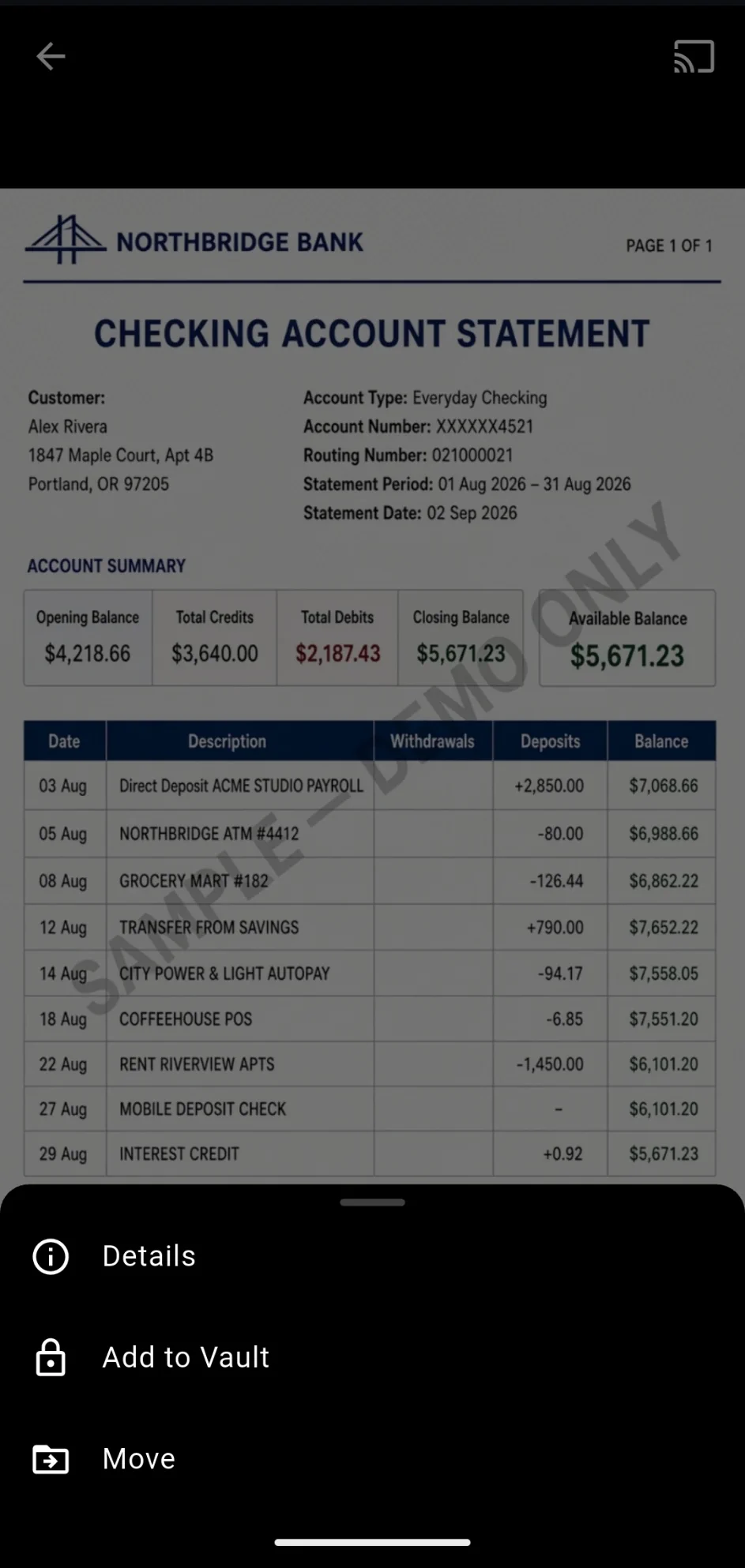
How to hide a photo
You do not need a separate “vault mode.” Add from wherever you are already looking:
- Pick the photos. Open one and tap Add to Vault, or select a few in the gallery grid and choose More → Vault.
- Confirm. Purgli copies each file, checks the copy, then asks the system to move the originals to Android Trash. Nothing is uploaded.
- Find them later. Originals stay in the Recycle Bin for 30 days. The private copies stay inside Purgli.
You can also send flagged documents from a document’s detail view or from document review, in a batch.
Getting in — and getting a photo back out
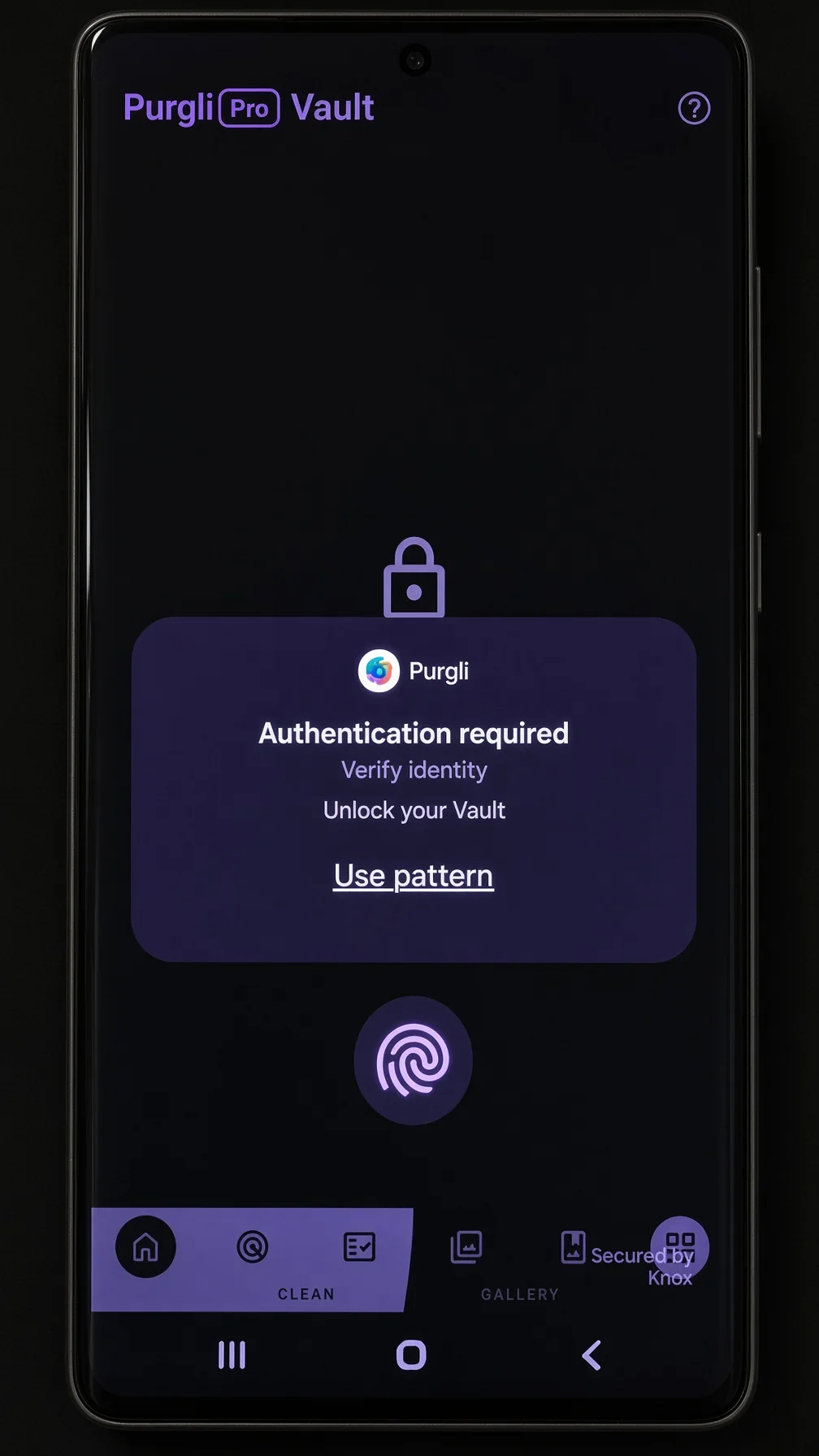
Open More → Vault. Purgli prompts immediately for the same lock you already use on the phone: fingerprint or face, with PIN or pattern as the fallback. If the device has no screen lock at all, the Vault will not turn on. There would be nothing protecting it.
The Vault re-locks when you leave the app. Handing someone the phone after you have used it does not leave the private grid sitting open.
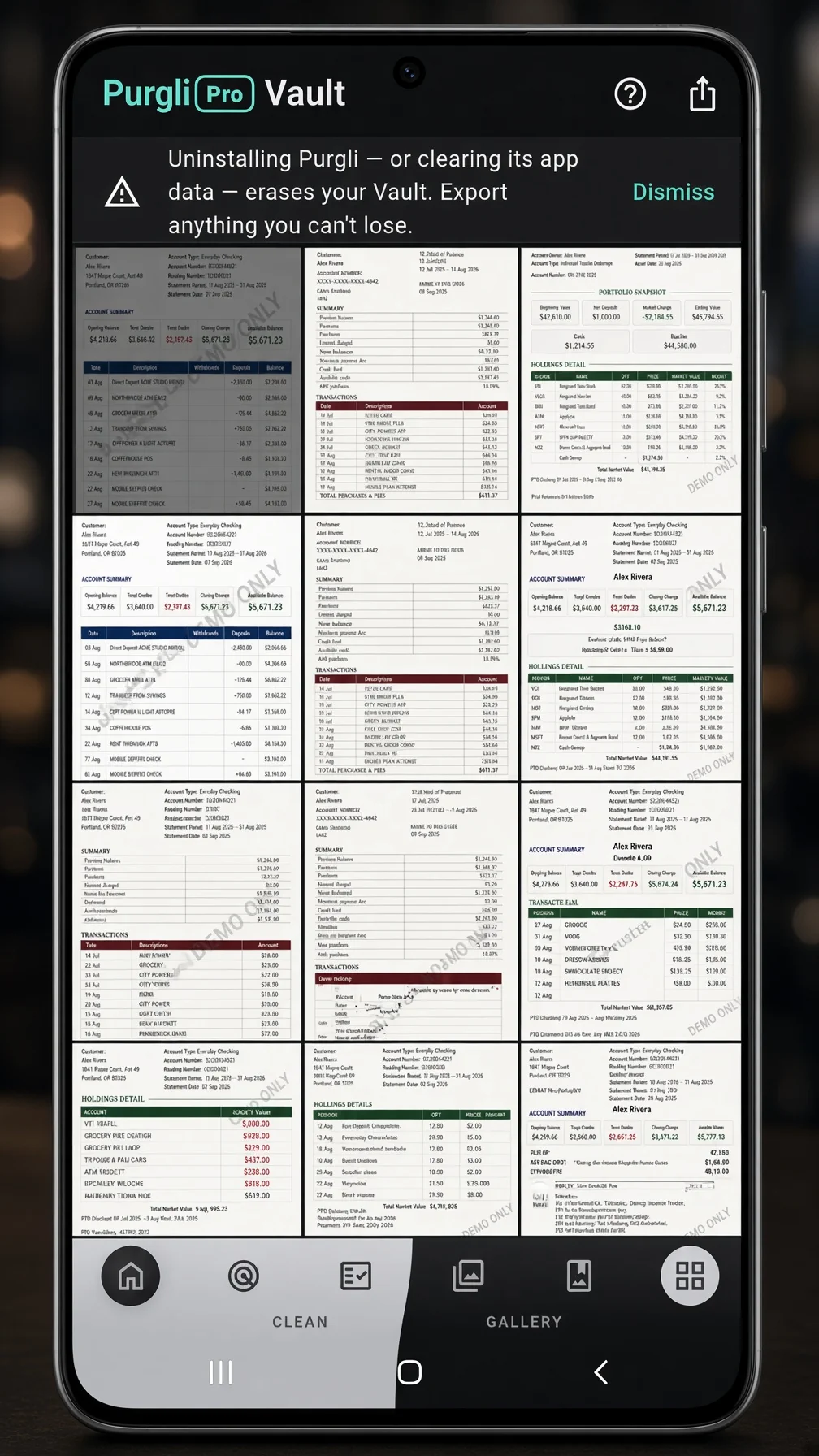
Inside, it is a normal photo grid. Tap through to view anything full-screen. Share or export a copy if you need to send one file without putting it back in the gallery.
Before you uninstall. Vaulted photos live in Purgli’s private app storage on this phone — they are never uploaded. Uninstalling Purgli, or clearing its app data, permanently removes them. Export or restore anything you cannot lose first.
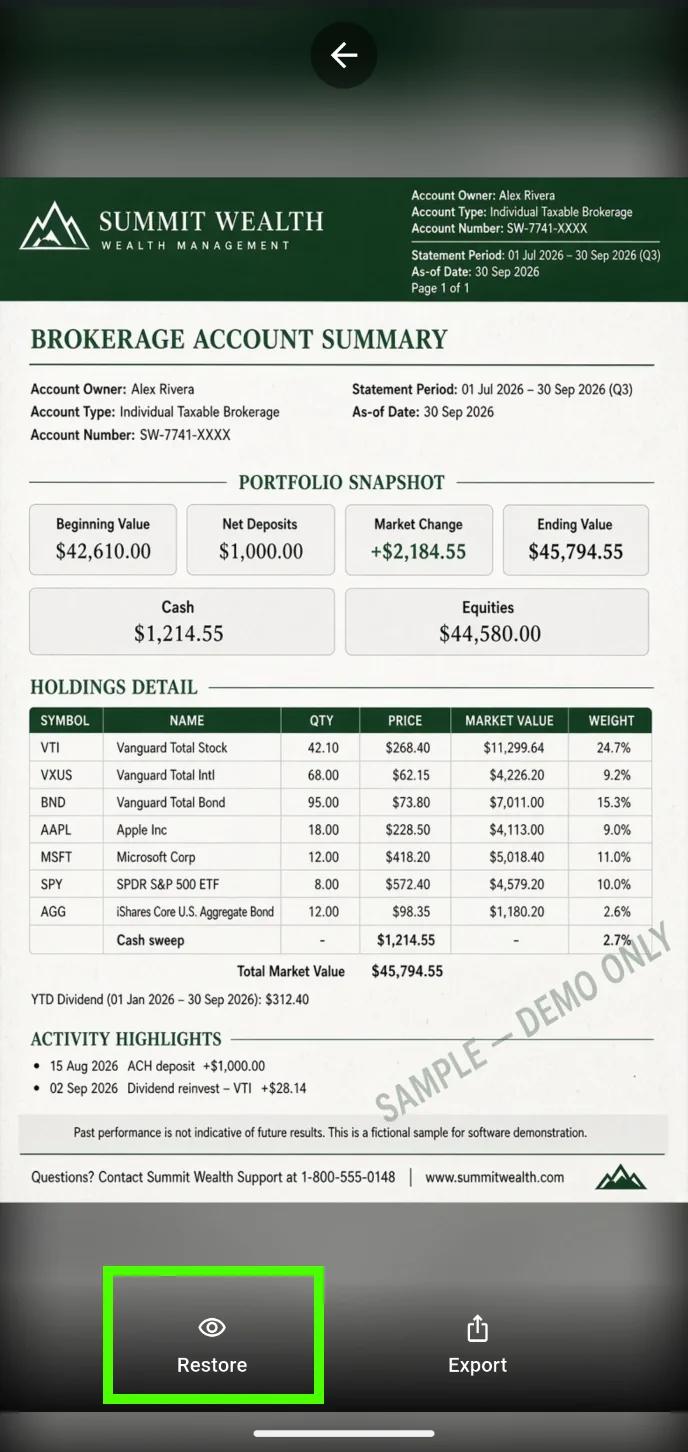
Restoring a photo (unvaulting) puts it back in the Camera Roll. If the original is still in the Recycle Bin, Purgli restores that original — same file, same date, same EXIF. If the 30 days have already run out, it re-imports the Vault copy as a new photo instead. Either way, the Vault copy is only removed after the gallery has the file again.
Restoring from the Recycle Bin is wired the same way. If you bring back a vaulted original from the bin, Purgli unvaults it rather than leaving you with a hidden copy and a visible copy of the same file.
What’s free and what isn’t
Adding photos to the Vault is Pro (or covered by the free trial).
Everything else is free forever: opening the Vault, browsing it, viewing an entry, exporting, and restoring a photo back out. No account required to get your own files back, even after a trial ends.
That split is deliberate. A vault should never hold your files hostage. The thing being sold is a place to put more photos privately, not the ability to see or reclaim the ones already there.
Scanning, browsing, exact-duplicate cleanup, and the Recycle Bin stay free either way. None of those send a photo off the device.
The takeaway
A vault is for the handful of photos you would not want a stranger — or a relative with your unlocked phone — to land on mid-scroll. Hide them behind the same fingerprint or PIN that already guards the device, keep them on this phone, and know that pulling one back out is never gated.
Purgli is on Android today. Get it on Google Play. iOS is coming soon. Or see the Vault feature page.