
Stop Uploading Every Shot: How to Clean Photos Before They Hit the Cloud
October 5, 2026
You get back from a wedding or a weekend trip, the phone connects to Wi-Fi, and Google Photos or iCloud quietly ingests everything. By the time you sit down, 300 shots are already up there. Three near-identical group photos where someone’s eyes were closed. Six burst frames of a dog that almost jumped. A 10-second video of someone’s shoes.
None of that felt deliberate at the time. The cloud just took it all.
The fix is not a better cloud. It is putting a step between the camera and the sync. Clean the phone first. Upload what is left.
At a glance
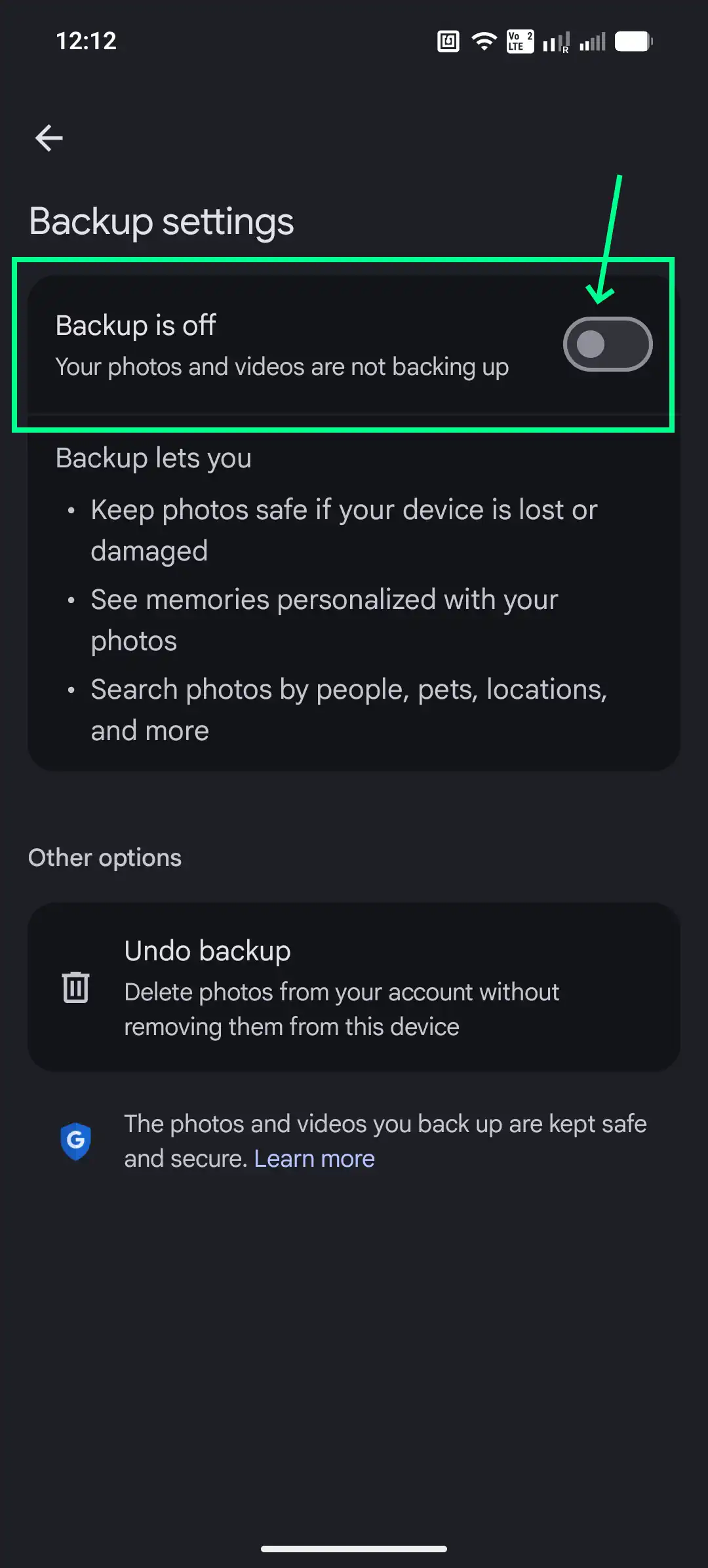
- Turn off auto-backup before you start cleaning, so nothing uploads mid-review.
- Run a scan on the phone. Exact duplicates, screenshots, and large videos are free to clean in Purgli.
- Sync on purpose. Re-enable backup once the roll is clean, or upload a curated album manually.
What “gating the sync” means
The idea is a workbench between the camera and the cloud. Raw photos land on the phone. You review them locally. The cloud gets what you decide to send, not everything the camera saw.
One thing to be honest about: if your photos are already in Google Photos or iCloud, turning backup off and deleting the phone copies does not remove the cloud copies or free that quota. Cloud cleanup is a separate pass in those apps, with their own trash timers. This post is about the shoot-first, clean-before-sync habit. If you are starting fresh on a new trip, this is the whole workflow. If your library is already up there, this keeps the next trip from adding to the pile.
Step 1: Turn off auto-backup
Do this before you connect to Wi-Fi after an event, or right now before your next shoot.
Google Photos
Tap your profile icon, then Photo settings, then Backup, then toggle it off. The library you already backed up stays in Google Photos. This stops new uploads from this device.
iCloud Photos (iPhone)
Settings, then your name, then iCloud, then Photos, then turn off Sync this iPhone. The dialog that follows offers “Download Photos & Videos” or “Remove from iPhone.” Choose Download. If your library uses Optimize iPhone Storage, originals may only exist in iCloud. Wait for the download to finish before touching anything.
OneDrive or Samsung Gallery
Open the app, find Camera Upload, toggle it off. Existing cloud copies stay where they are.
Step 2: Clean it on the phone
With backup off, the phone is your staging area. Open Purgli and tap Scan Library.
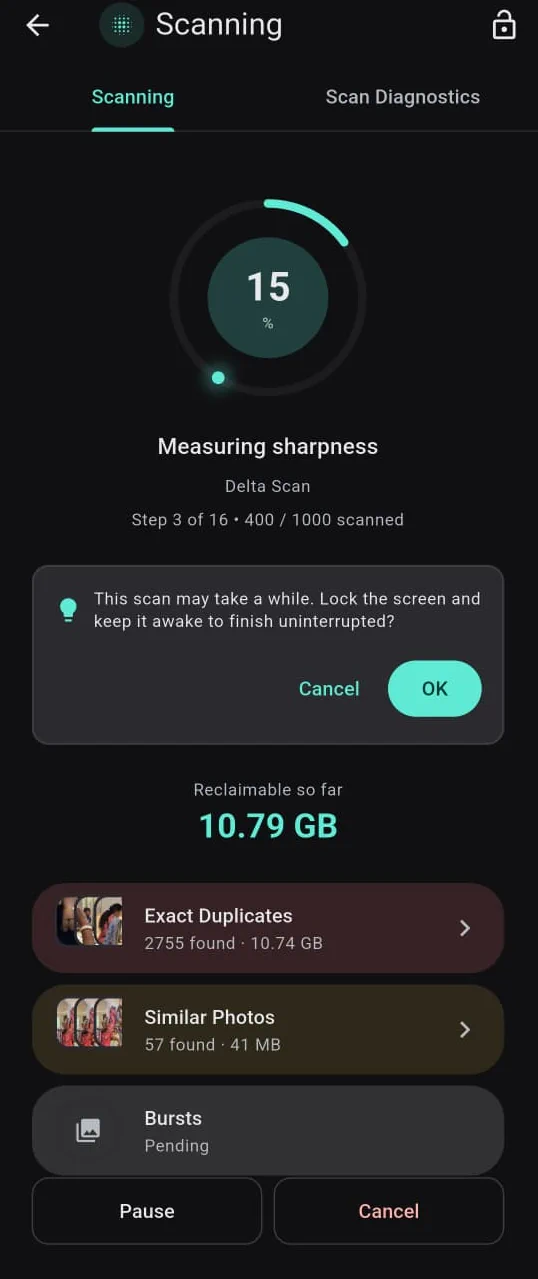
Quick Scan looks at your newest photos. Deep Scan walks the whole library. If this is the first time cleaning this phone, Deep Scan is the one to run. For a long scan, keep the screen awake.
When the scan finishes, tap Smart Review and open Exact Duplicates. These are the same file sitting in more than one folder: a WhatsApp save next to the camera original, a backup app that re-downloaded something, a share that left a compressed copy behind. Pick one to keep in each group. The rest go to the Recycle Bin.
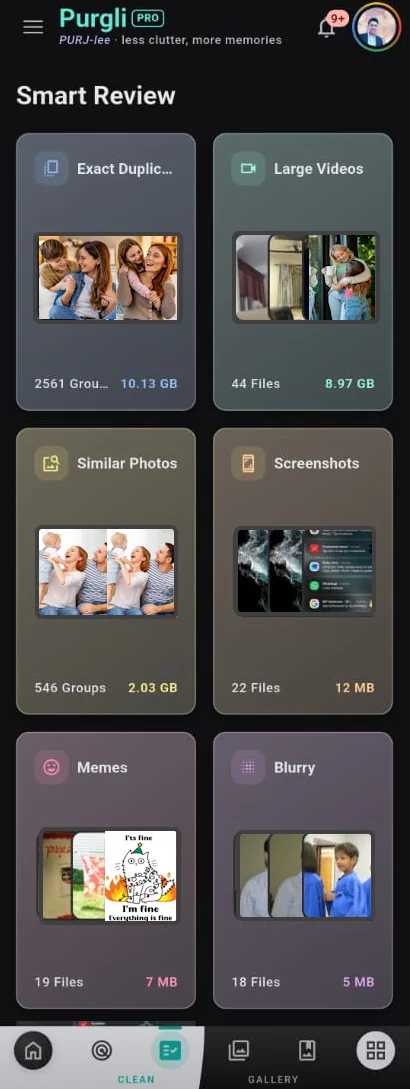
Screenshots and large videos are free to review the same way.
Near-identical shots, blur, and burst extras are Pro or the trial. If the burst frames and similar group shots from the hook are exactly the kind of thing you want to tackle, that is the Pro pass. The free pass still handles true copies, screenshots, and large videos, which is often most of the recoverable space anyway.
Do this while backup is off. On Android, deleting a photo inside Google Photos while Backup is on removes it from Google Photos and from the phone at the same time. Purgli’s Recycle Bin holds the phone copy for 30 days regardless. Just make sure backup is still off before you start reviewing.
Step 3: Sync what you actually want
Once the camera roll has the photos you want to keep, you have two options.
Turn backup back on. Google Photos picks up everything currently on the phone that has not been backed up yet. The burst frames and blurry shots you removed are no longer in the queue.
Upload one album on purpose. If you want only a curated album in the cloud and not the rest of the camera roll, keep Backup off. Open Google Photos, find the album, and upload it manually. These are different actions. Re-enabling Backup uploads the full remaining library, not just one album.
Either way, the cloud gets a smaller, cleaner set than it would have gotten from a raw sync.
What’s free
| Feature | Free | Pro / trial |
|---|---|---|
| Exact duplicate removal | ✓ | ✓ |
| Screenshot cleanup | ✓ | ✓ |
| Large video cleanup | ✓ | ✓ |
| 30-day Recycle Bin | ✓ | ✓ |
| Near-identical photo detection | — | ✓ |
| Blur detection | — | ✓ |
| Burst photo review | — | ✓ |
No account required for any of the free features. Scanning and browsing every category stays free.
After the first clean
The habit is the whole point. Clean the phone before the backup runs, and the cloud library stays manageable over time. The first pass takes the longest. After that it is a quick scan after each trip.
Get Purgli on Google Play. Or read how Smart Scan and the Recycle Bin work.