Photo Book Magic
Create beautiful photo books from your favorite memories.
In the app·Albums → Create Photo Book
 Coming soon on theApp Store
Walkthrough
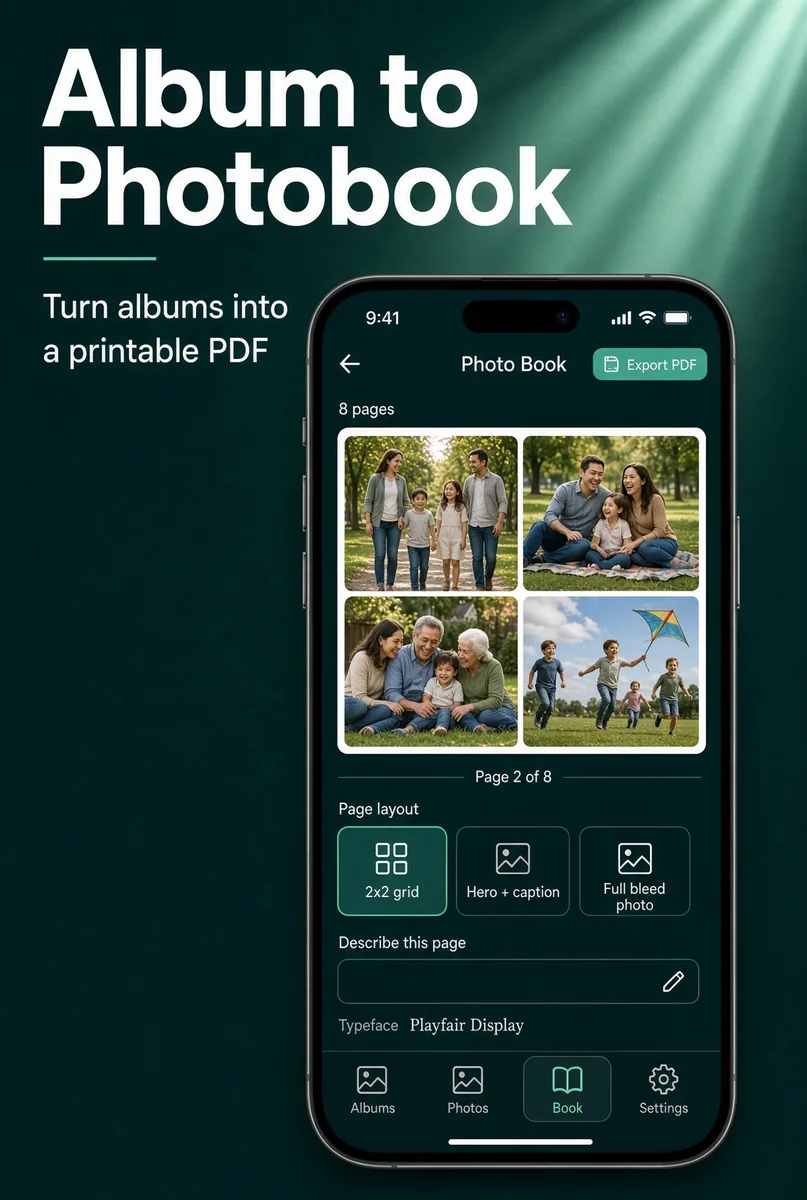
From an album to a print-ready PDF.
Lay out spreads on this phone, then export. Nothing is uploaded.
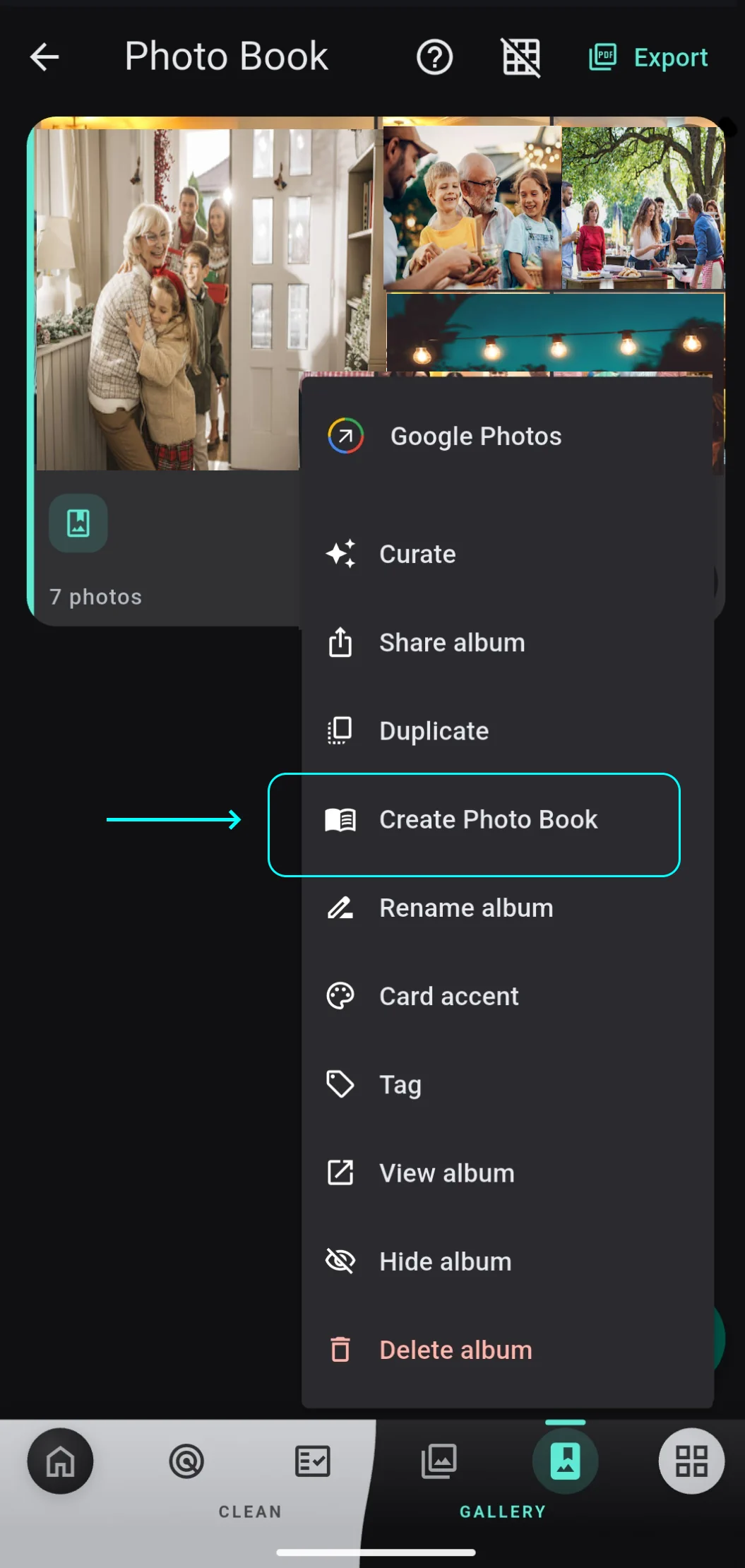
Create Photo Book from an album
Open Albums and tap the album menu. Create Photo Book (Pro or active trial) opens the designer. The album needs at least one photo. Reopening an album resumes the saved design.
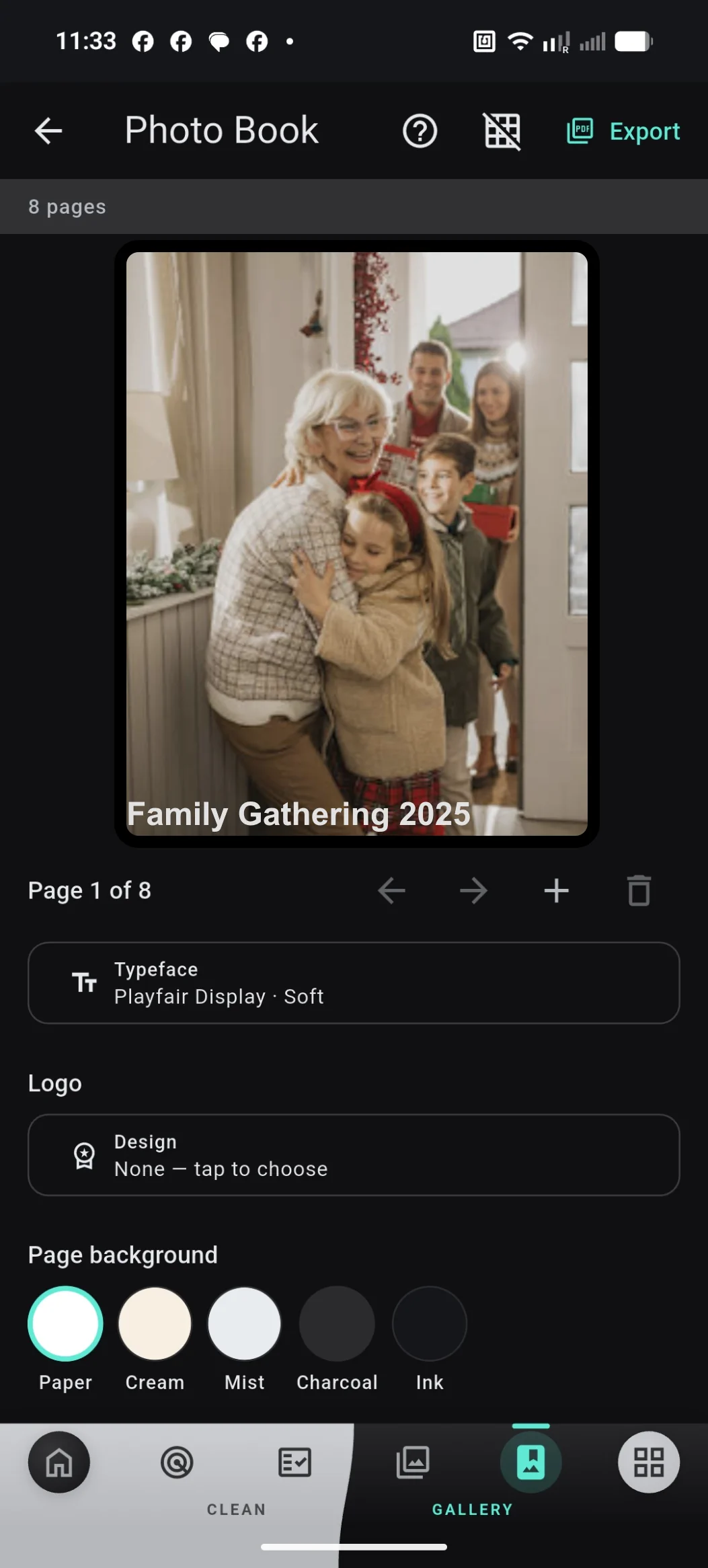
Set the cover, type, and background
On the cover, set a title, typeface, optional logo, and page background (Paper, Cream, Mist, Charcoal, Ink). Toggle print guides in the app bar to see trim and fold. Work autosaves.
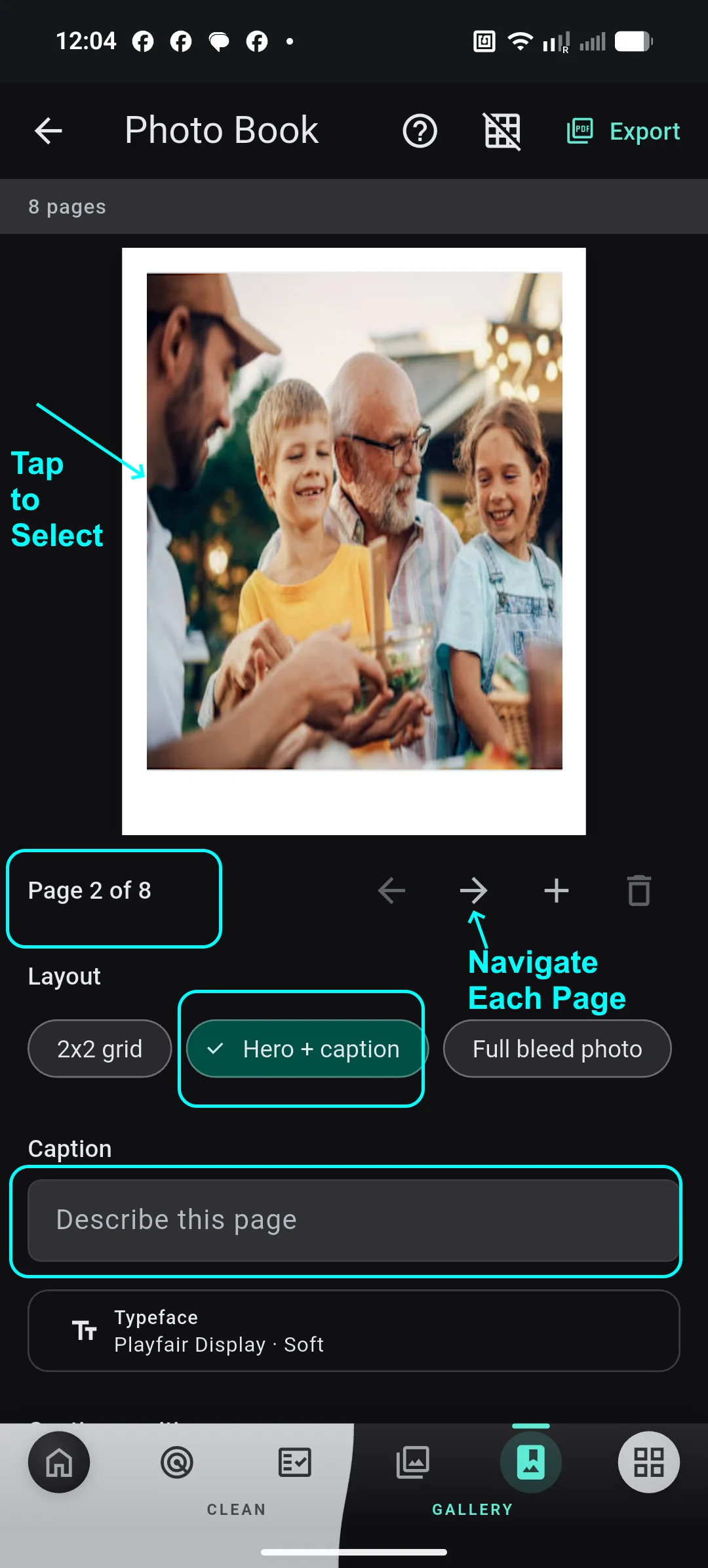
Lay out each page
Use the arrows to move through pages, or + and the trash to add and delete. Tap a photo to swap it from the album. For body pages, pick 2x2 grid, Hero + caption, or Full bleed photo. Hero + caption adds a "Describe this page" field and a typeface. Covers keep their own layout.
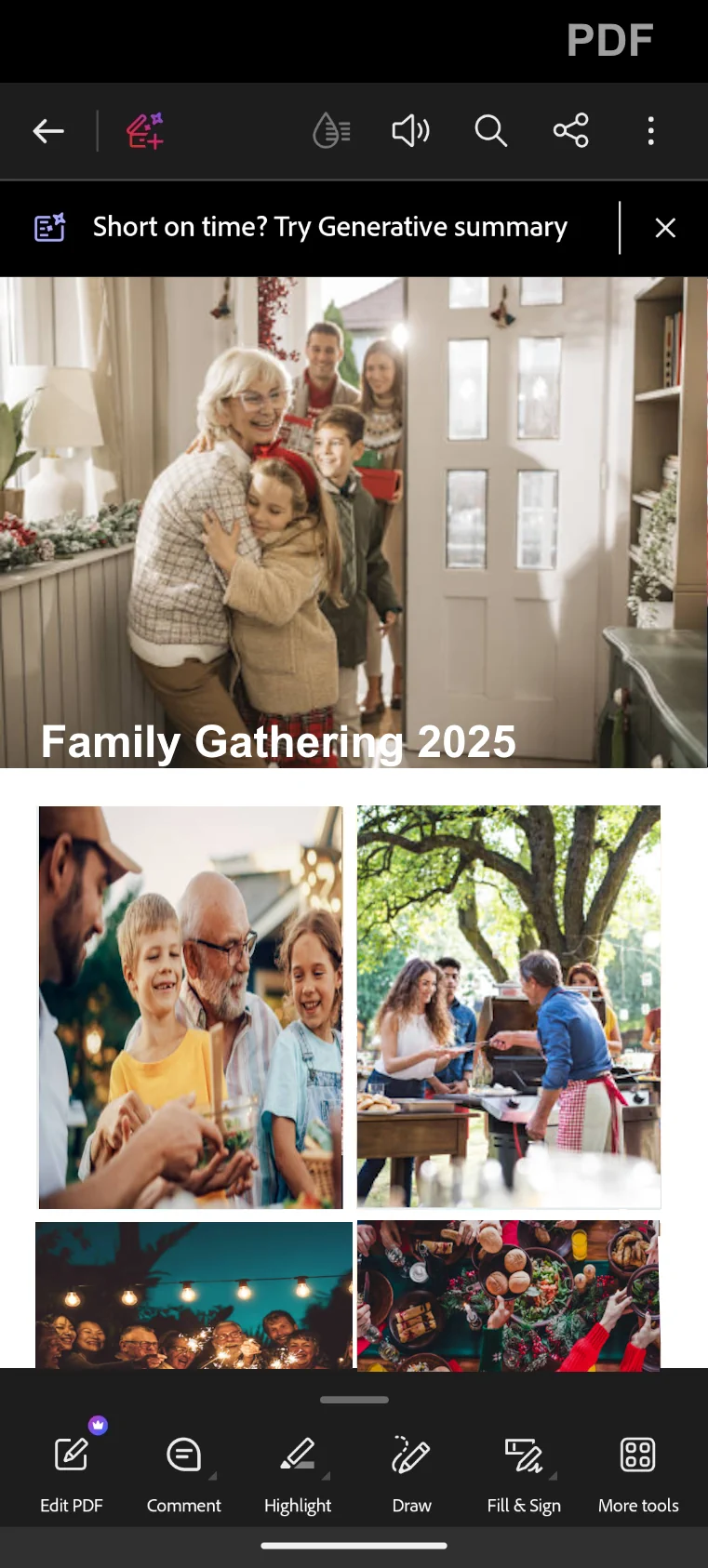
Export a PDF
Tap Export. Purgli builds the PDF on this device and opens the share sheet. Open the file to preview spreads, print, or send — the photos never leave your phone during the layout.
Try Photo Book Magic on your phone
Photo Book Magic runs entirely on your device — no document or photo ever leaves your phone.
Coming soon on theApp Store