
How to Clear WhatsApp and SMS Media on Android (Without Touching Your Chats)
September 14, 2026
Open your phone’s storage settings and sort apps by size, and WhatsApp is often near the top — not because the app itself is large, but because of everything it has saved on your behalf. Every photo, video, and GIF anyone has sent you gets written to its own folders on the device, separate from Camera. The folder just keeps growing.
Most people never open it. It sits there until storage runs low.
Why this folder gets so big
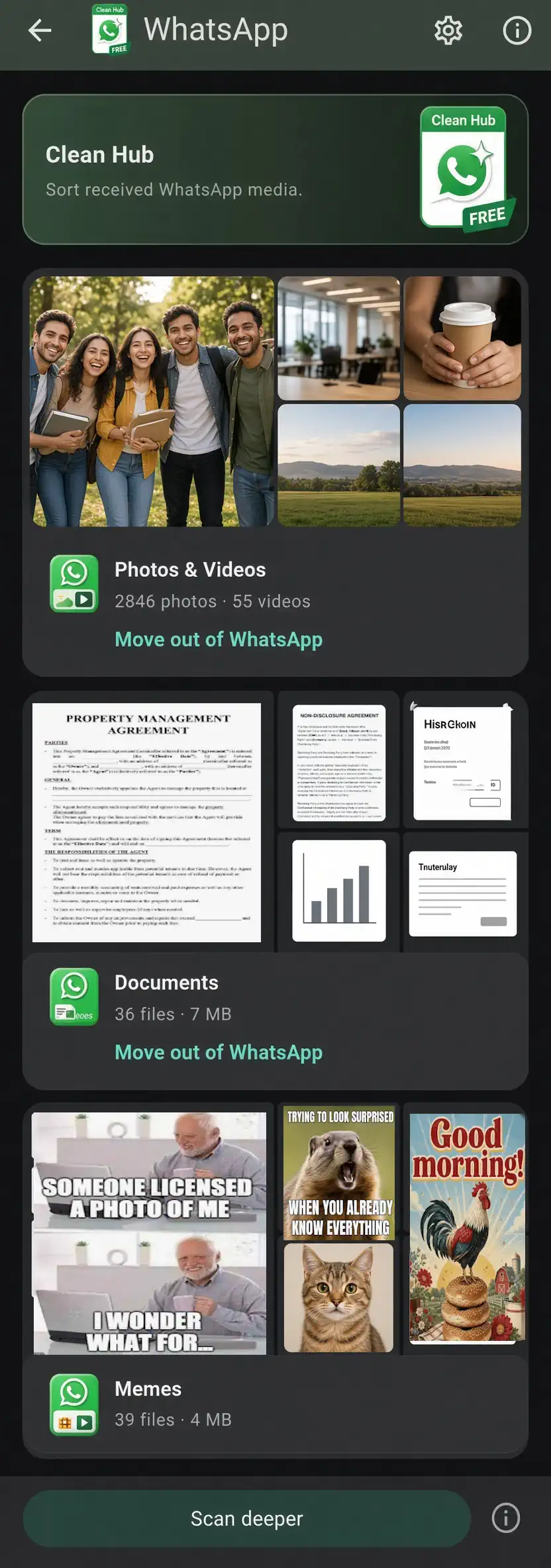
WhatsApp writes incoming (and some outgoing) media into its own set of folders on Android — separate from DCIM/Camera — split roughly by type: images, videos, and animated GIFs. Every meme a group chat forwards, every video someone dumps in a family thread, every photo you glanced at once gets saved there automatically, whether or not you meant to keep it.
SMS and MMS work similarly on some phones. Stock Google Messages and Samsung Messages often save received media into a gallery-visible Pictures/Messages folder rather than keeping it only inside the messaging app.
None of this shows up when you are just scrolling Camera. That is why it goes unnoticed for months.
Note. Purgli never touches your text messages or chat history. Deleted media leaves the gallery and sits in the 30-day Recycle Bin first, so you can restore anything this month.
| Feature | WhatsApp Media | SMS Media |
|---|---|---|
| Where the files live | WhatsApp Images, Video, Animated GIFs — in both the older WhatsApp/Media folders and Android 10+ Android/media/com.whatsapp/… | Gallery folders such as Pictures/Messages |
| How Purgli finds them | Folder path contains "WhatsApp" (legacy and Android/media paths) | Folder path contains Messages, MMS, or SMS |
| What it can see | Everything WhatsApp saved to shared storage | Only copies already saved to the gallery |
| Android | Full category | Full category, with a coverage note |
| iOS | Not available — Apple does not expose these folders | Usually empty — Messages attachments stay inside the app |
At a glance
- Separate from Camera. Chat media lives in its own folders, so a gallery scroll misses it.
- Folder match, not a guess. Purgli looks at the path, not whether a photo “looks like” a meme.
- Free forever. Scan, browse, review, and delete — no Pro, no account.
How Purgli finds it
Purgli treats WhatsApp Media and SMS Media as two categories, because they come from different folders and different apps.
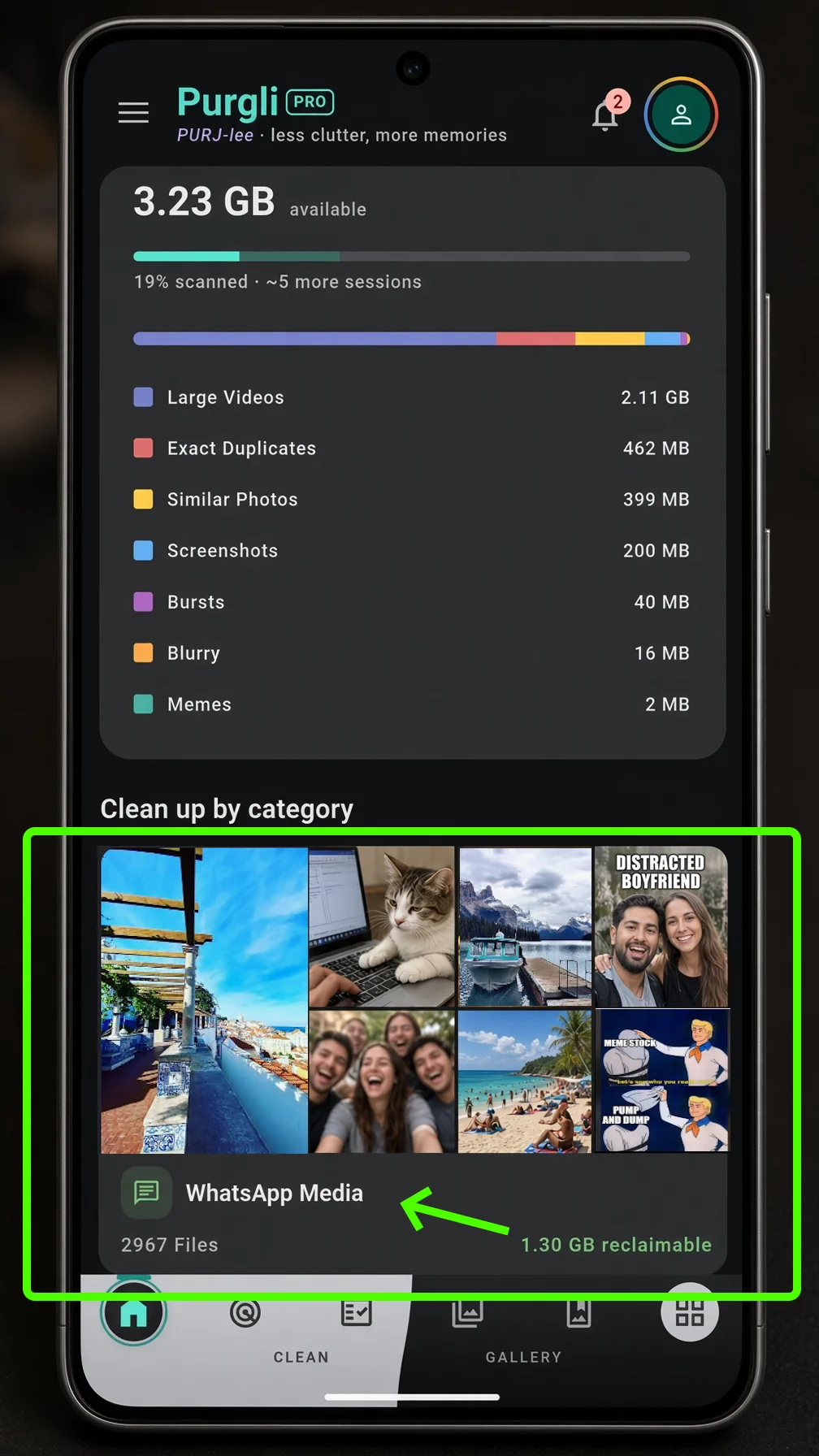
This is a cheap folder check, not an ML pass. A photo that merely looks forwarded will not get dumped in here; a file sitting in a WhatsApp folder will. That includes both the older WhatsApp/Media tree and the Android 10+ scoped-storage location (Android/media/com.whatsapp/WhatsApp/Media) — Purgli matches any path containing “WhatsApp”, so newer phones are not left out. You do not need a Deep Scan for the counts to show up. Home already aggregates those folders, so the tiles appear under Clean up by category with a file count and a reclaimable-size estimate.
One honest limitation
WhatsApp Media is Android-only. Apple does not expose the underlying folder structure the same way, so that category is not available on iOS.
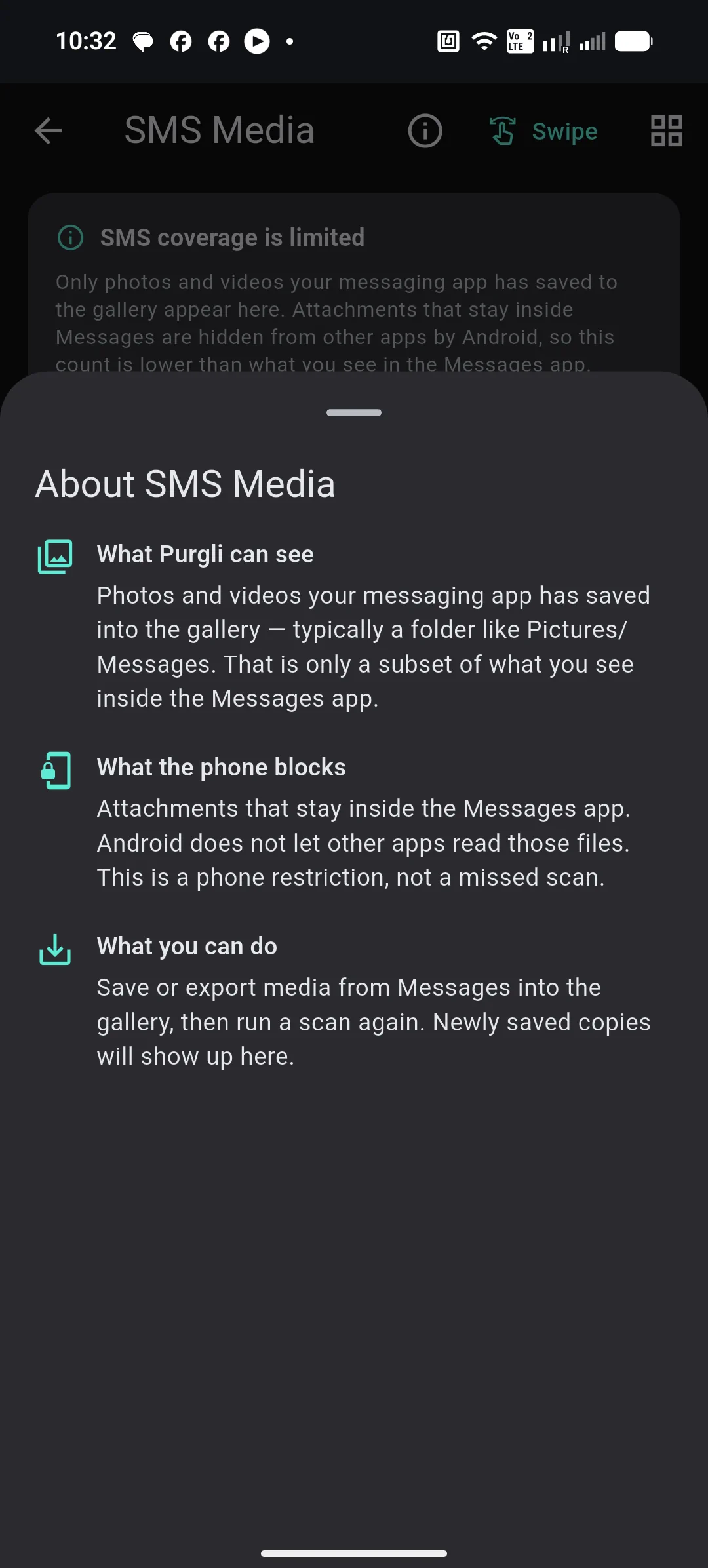
SMS Media is more limited on every phone. Purgli can only see media that has already landed in shared gallery storage — typically something like Pictures/Messages. Attachments that stay inside Messages are blocked from other apps by the OS. That is a phone restriction, not a missed scan. The SMS review screen shows this as a short info card, rather than implying Purgli caught every MMS you have ever received.
WhatsApp Media does not need the same caveat. WhatsApp writes into ordinary shared-storage folders, so Purgli sees the same files a file manager would.
How to clear it
- Open Purgli. On Home, scroll to Clean up by category and tap WhatsApp Media or SMS Media. You can also get there from Smart Review after a scan.
- Review the grid. Each photo and video is independently selectable — there is no “keep the best copy” logic here, unlike exact duplicates or bursts. Select item by item, or use Select all.
- Clean up. Anything you remove goes to Purgli’s 30-day Recycle Bin. Clearing a year of forwarded memes does not mean losing them permanently if you change your mind this month.
- Restore if you need to. The Recycle Bin only holds what you deleted through Purgli. Once it is permanently emptied, you would need to ask the sender to re-send the media — local chat thumbnails often cannot re-download on their own. Your chats themselves are untouched.
Is this free?
Yes. Both WhatsApp Media and SMS Media are free categories — scanning, browsing, reviewing, and deleting all work without a Pro subscription or an account. They sit alongside exact duplicates, screenshots, and large videos as always-free cleanup.
The takeaway
The photos and videos other people send you can take more space than the photos you took yourself, sitting in a folder you never open. Because this is a folder-based scan rather than anything that has to understand the picture, Purgli can size it up and clear it for free in a couple of taps — with the usual 30-day safety net if you second-guess a delete.
Purgli is on Android today. Get it on Google Play. iOS is coming soon. Or read how Smart Scan and the Recycle Bin work.