
Swipe to Clean
Flick through clutter one photo at a time — keep or bin it, undo anytime.
In the app·Smart Review
 Coming soon on theApp Store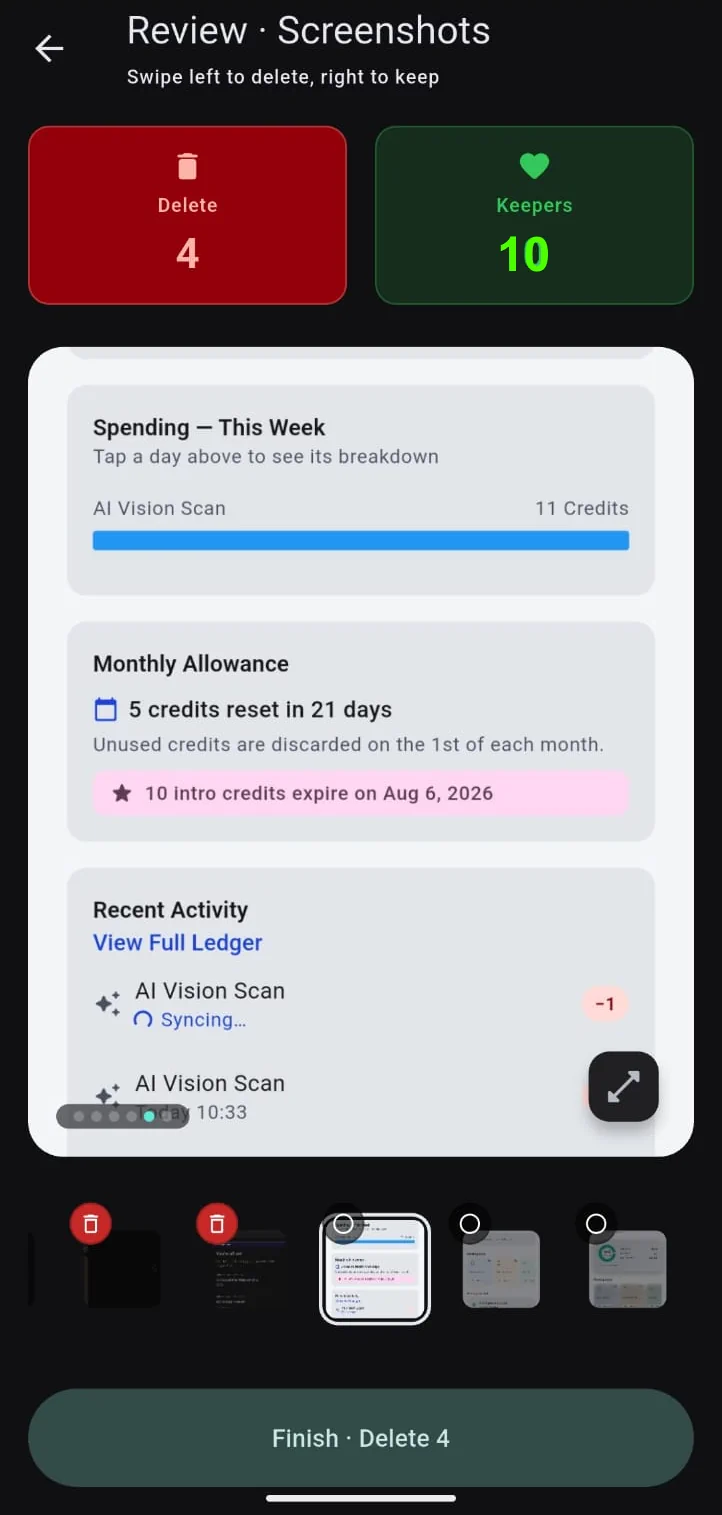
Walkthrough
Left to bin. Right to keep.
One photo at a time. The card tints red or green as you drag. Finish moves deletes to the Recycle Bin — nothing is gone on tap.
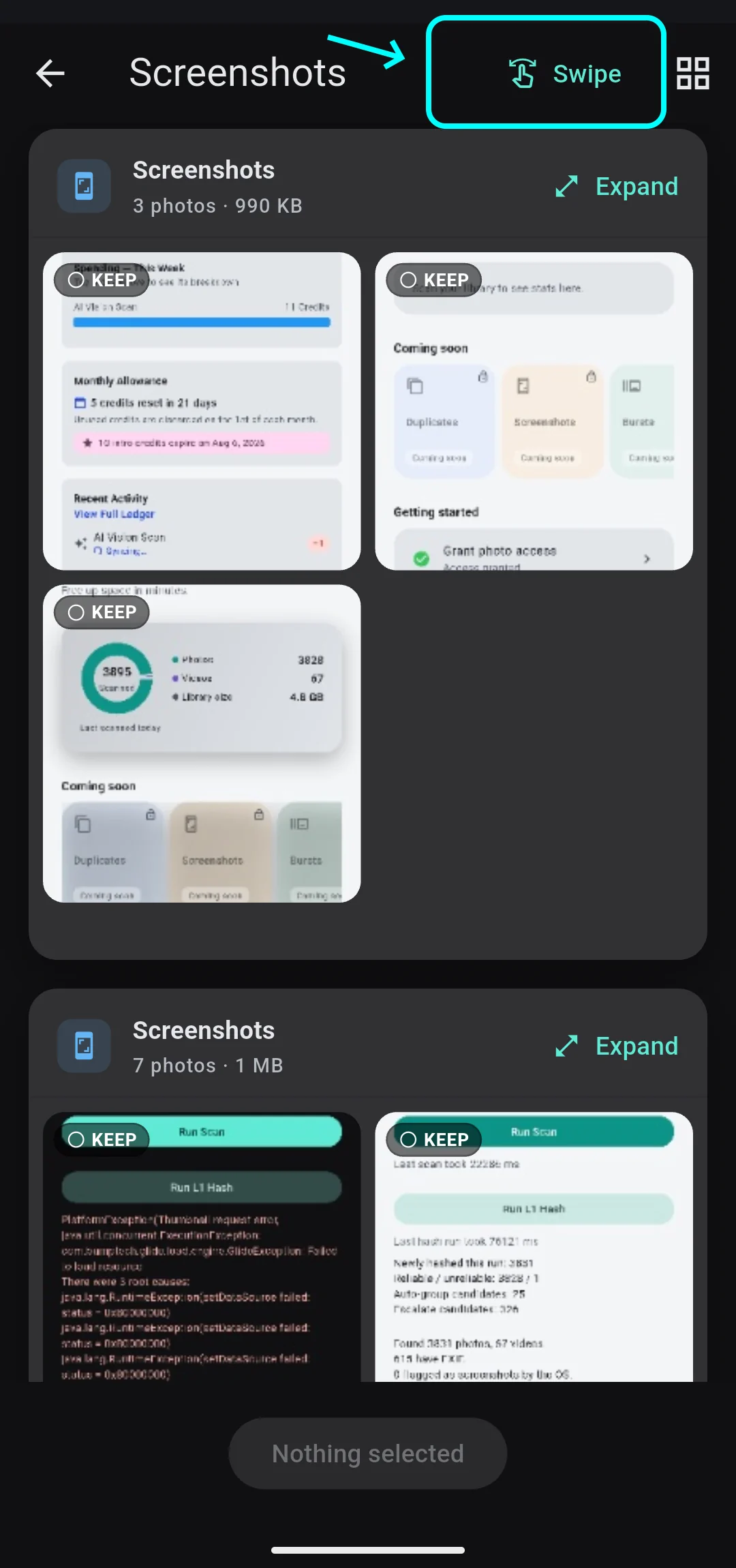
Open swipe review
From Smart Review, open a category. You land in bulk review — tap Swipe in the app bar to flick through one photo at a time. Screenshots are free to clean this way.
Swipe left to delete, right to keep
Drag the card. Left: a red glow, the Delete count ticks up, and that photo is marked for the Recycle Bin. Right: a green glow, Keepers ticks up, and the photo stays in your library. Release short of the edge and the card snaps back — no decision. A fast flick counts the same as a full drag. Tap a thumbnail in the strip to jump back and change your mind before you Finish.
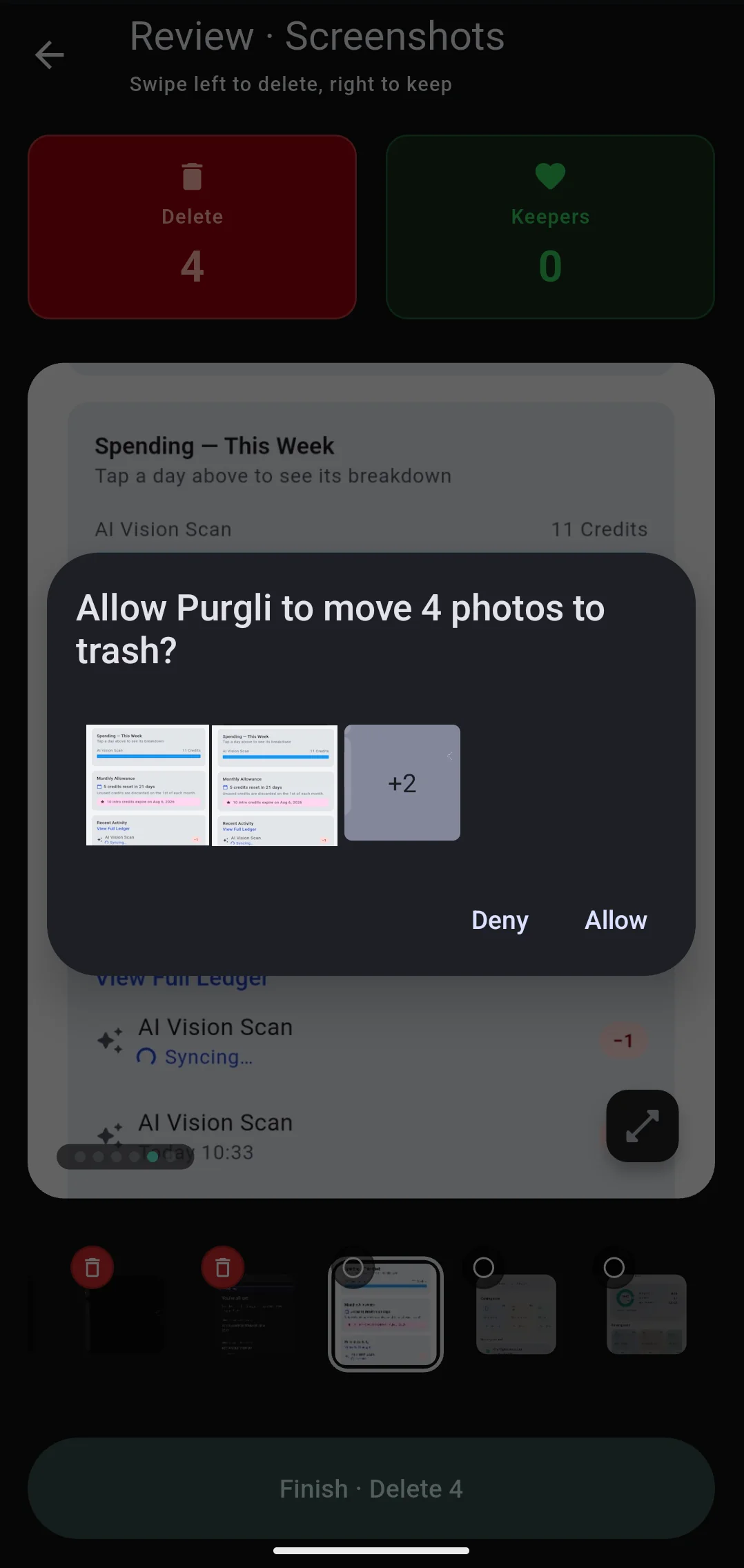
Finish — Recycle Bin, not gone
Tap Finish · Delete N. Android asks "Allow Purgli to move N photos to trash?" — Allow. They go to the 30-day Recycle Bin, not gone for good. Restore from More → Recycle Bin, or empty it when you are sure. Screenshots stay free to clean this way; Pro categories still open review or the paywall.
Try Swipe to Clean on your phone
Swipe to Clean runs entirely on your device — no document or photo ever leaves your phone.
Coming soon on theApp StoreMore from Purgli
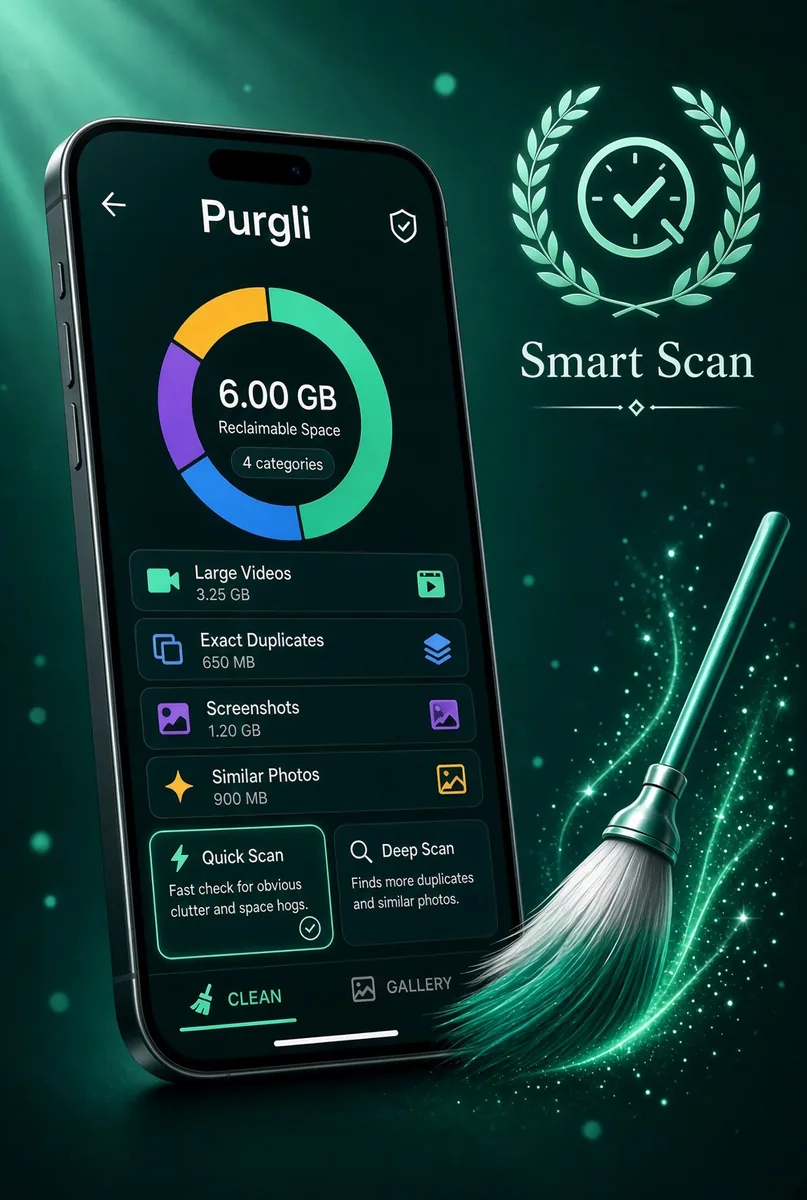
Smart Scan
Finds duplicates, blur, and clutter in seconds — all on this device.
See how it works→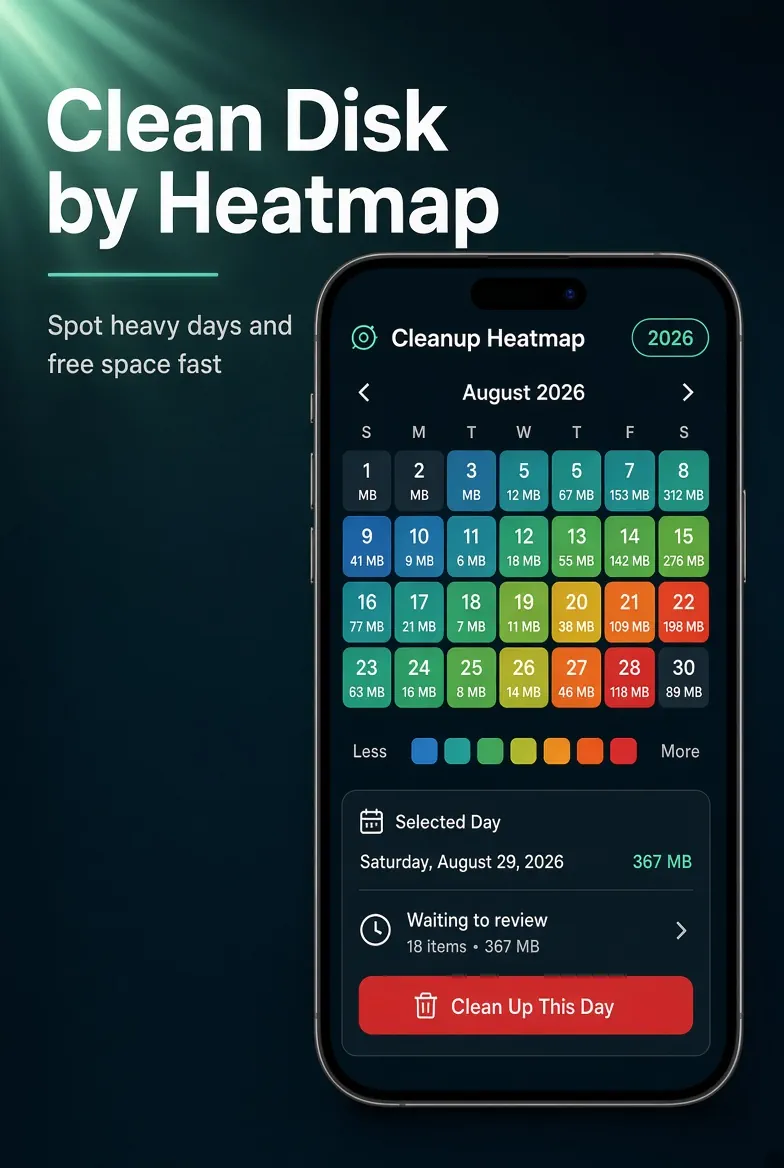
Clutter at a Glance
See which months piled up the most clutter, then clean by date.
See how it works→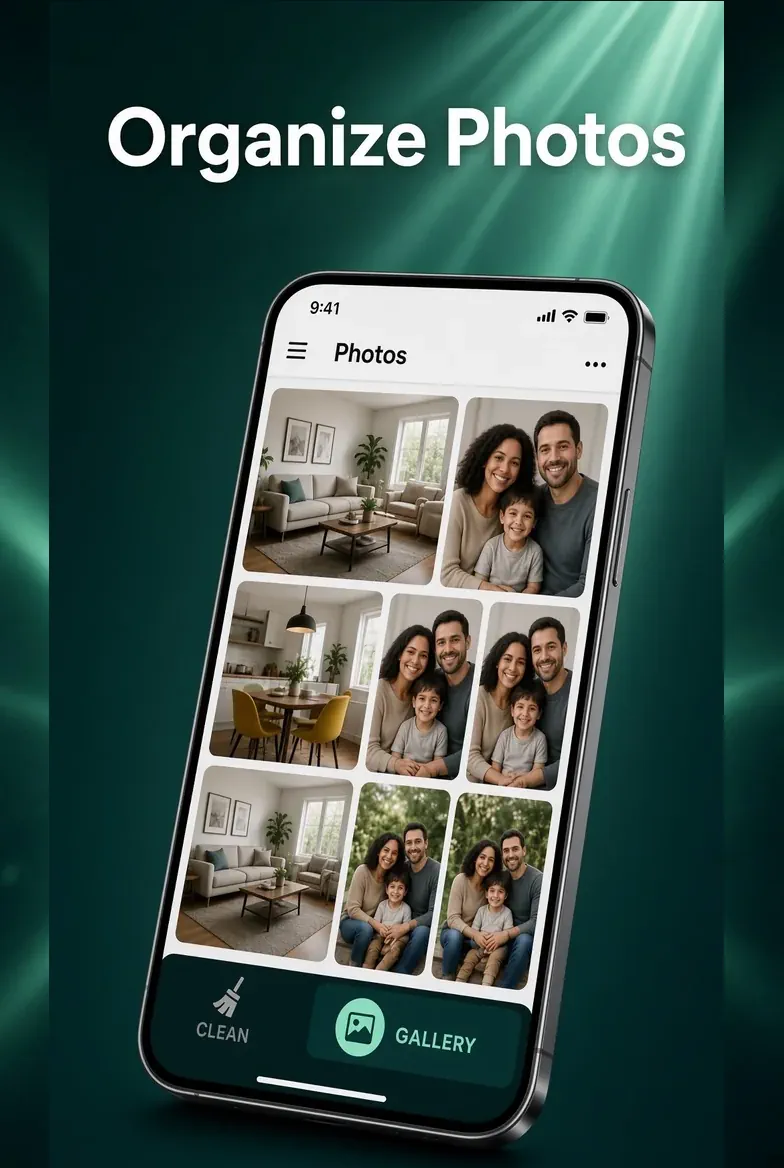
Your Library, Sorted
Sort your whole library into clean, browsable albums.
See how it works→